 WBWriter

WBWriter docs
WBWriter quick start
How to install WBWriter on macOS, set it up for a show, and send the board to an LED wall over NDI® or HDMI.
Install
- Download the latest
.dmgfrom https://github.com/4H1Mzs/wbwriter/releases/latest. - Open it and drag WBWriter into Applications.
- Open WBWriter. When macOS asks to let it find devices on your local network, click Allow. NDI can't work without this.
Requirements: macOS 13 or later, on Apple Silicon or Intel.
Set up the show
All settings are in the setup window and are saved between launches.
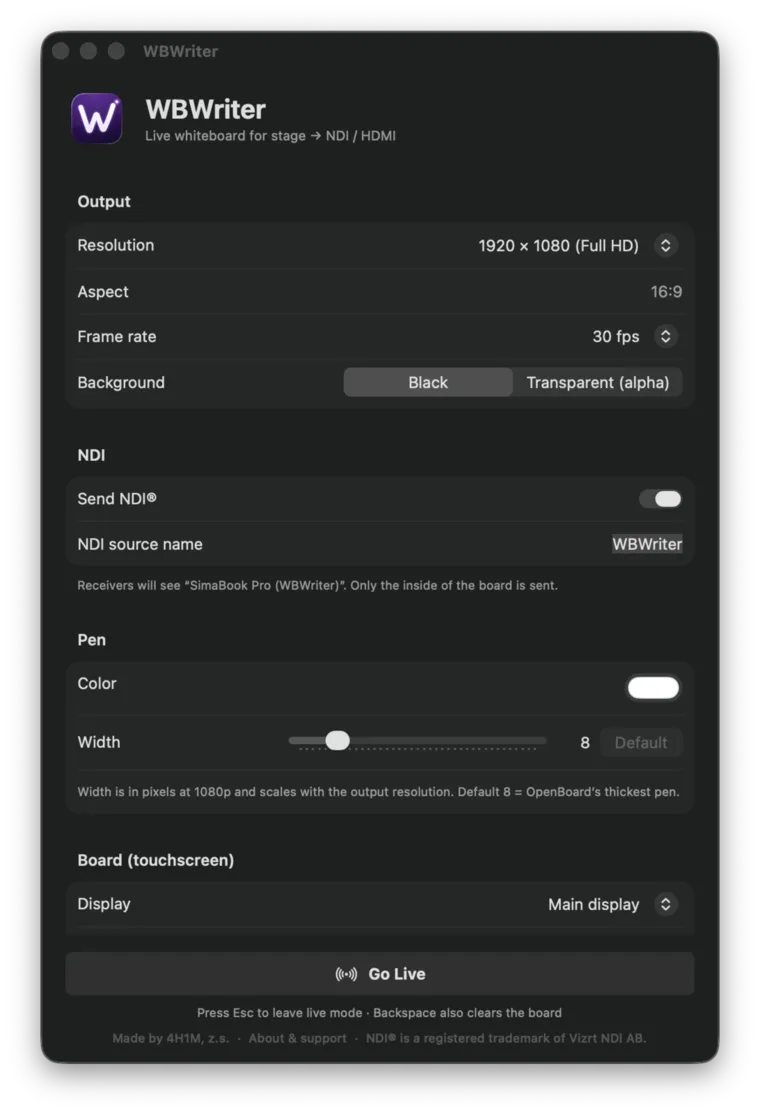
| Setting | What to choose |
|---|---|
| Resolution | Your LED wall's pixel size. Presets: 1920×1080, 3840×2160, 2560×1440, 1280×720, 1080×1920 (portrait), or custom. |
| Frame rate | 23.976, 24, 25, 29.97, 30, 50, 59.94 or 60 fps. Match your video system. |
| Background | Black for a normal feed. Transparent for an alpha overlay (BGRA, straight alpha). |
| Send NDI® | On or off. |
| NDI source name | Receivers see MACHINE-NAME (your name). |
| Pen color | White by default. |
| Pen width | Pixels at 1080p, scaled with the output resolution. Default 8 matches OpenBoard's thickest default pen. |
| Board display | Which screen is the touchscreen. |
| Margin | Space around the board on the touchscreen. |
| Clear gesture | Single tap, double tap (safer), or none (no button). |
| Clear button | Which corner of the touchscreen it sits in. |
| Corner logo | A small, faint logo in the bottom-right corner of the touchscreen: 4H1M, your own image, or none. It's never sent to the outputs. |
| Hide mouse cursor | Hides the pointer while live. |
| HDMI output | An external display for a clean full-screen feed, or None. |
| Web control | Off by default. When on, it shows the address to open on a phone, with an optional port and PIN. |
Go live
Click Go Live or press Return. The board fills the touchscreen, and the Dock and menu bar are hidden.
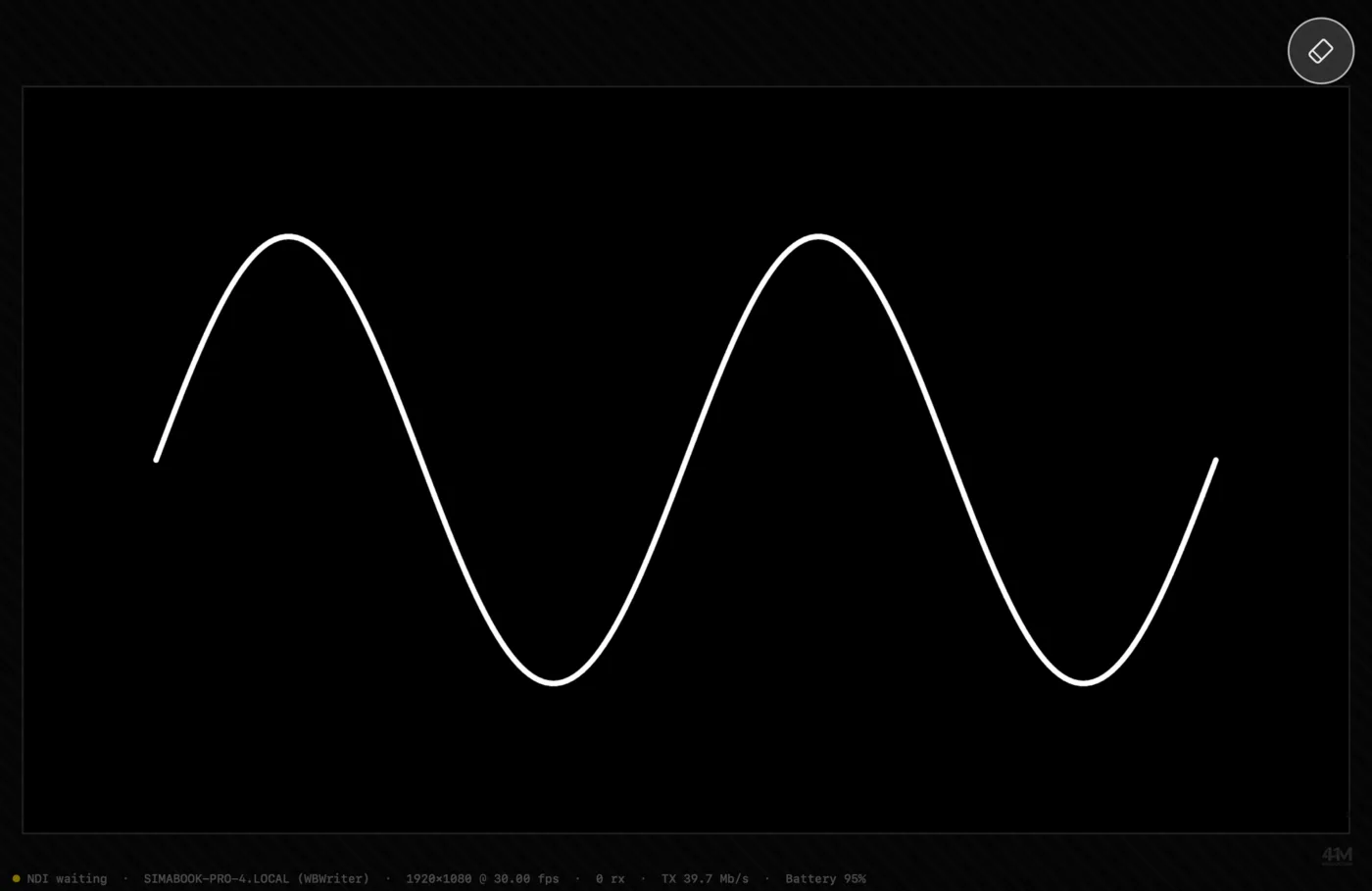
- Write with a finger, pen or mouse.
- Tap the clear button to erase the board. Backspace on a keyboard also clears it.
- Press Esc to return to setup.
Read the status line
A small status line sits outside the board, near the bottom of the touchscreen. When there isn't room below the board, it moves into the margin beside it and wraps onto several lines. It's never sent to NDI or HDMI.

| Indicator | Meaning |
|---|---|
Green NDI OK | Sending at the target frame rate, with at least one receiver connected. |
Yellow NDI waiting | Sending fine, but no receiver is connected yet. |
Red NDI DROPPING | Sending below 90% of the target frame rate. |
… fps | Measured send rate. |
… rx | Number of connected NDI receivers. |
TX … Mb/s | Total outgoing traffic on the Mac's Ethernet and Wi-Fi interfaces. |
Battery …% | Shown only on battery power. Turns red at 20% or below. |
Control it from a phone
Turn on Web control in the setup window and open one of the addresses it shows (for example http://Stage-Mac.local:8080) on a phone or laptop on the same network.
- Clear board: tap twice to confirm.
- Message to the performer: shown in yellow in the hatched area of the touchscreen, never on NDI or HDMI. It stays until you tap Remove message, or disappears after 10 seconds, 30 seconds or a minute.
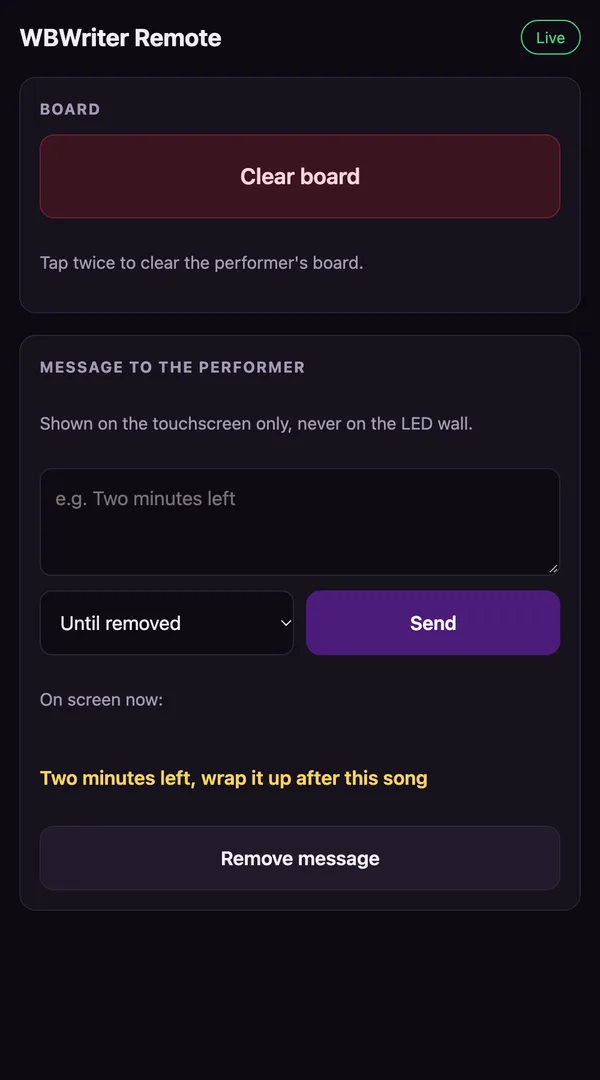
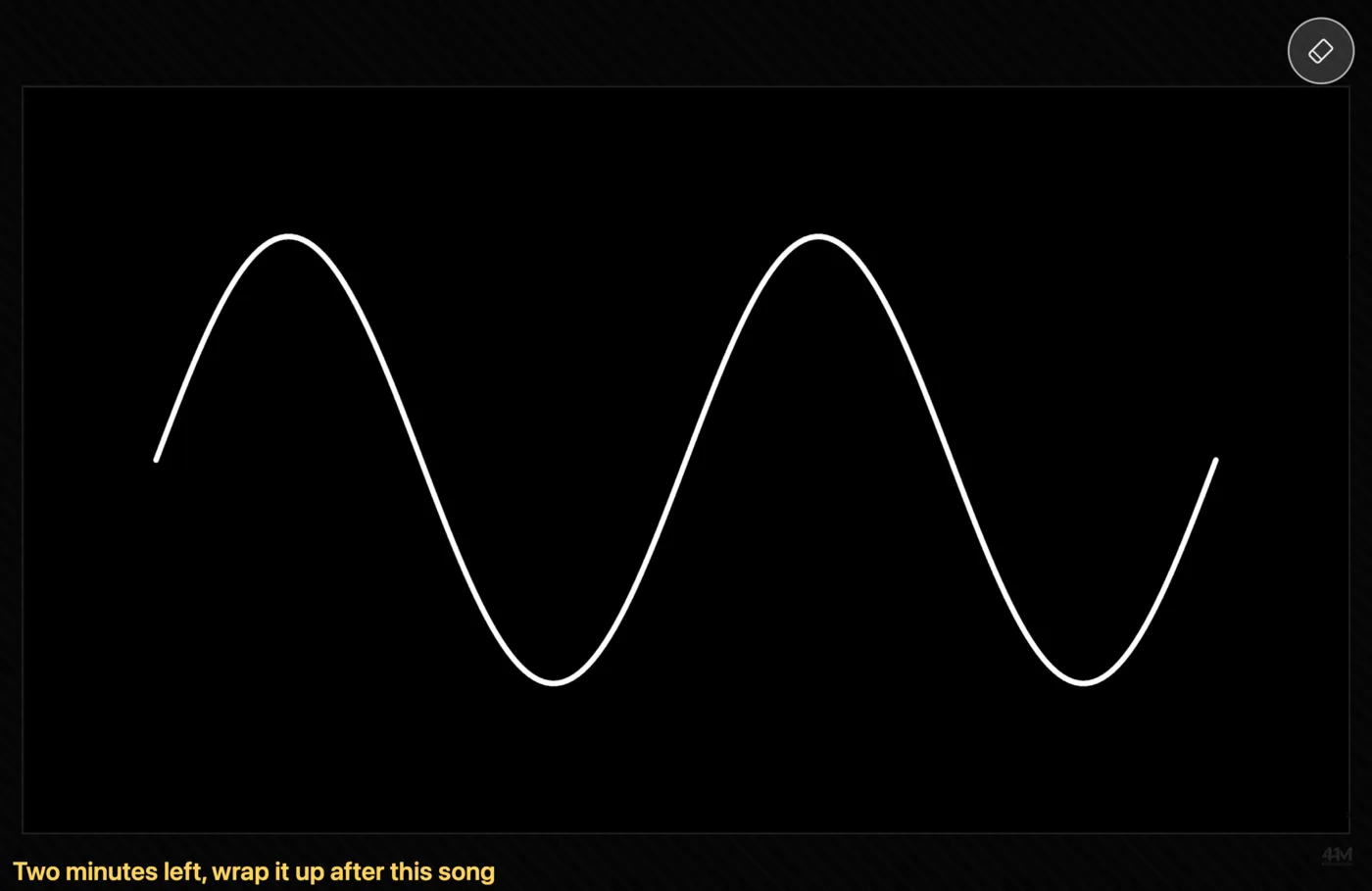
The actions work only while WBWriter is live. Set a PIN if other people share the network. If the macOS firewall is on, allow incoming connections for WBWriter when asked.
Receive the feed
Any NDI receiver works, for example vMix, OBS with DistroAV, Resolume, NDI Studio Monitor, TriCaster or disguise. Look for the source named MACHINE (WBWriter), or whatever name you set.
Test without touching the screen
Run /Applications/WBWriter.app/Contents/MacOS/WBWriter --selftest. WBWriter goes live right away and draws a test stroke, which is useful for checking NDI or HDMI routing from the video desk.
Support: simon@4h1m.com